Inventory Management
Learn how to effectively manage your healthcare supplies, track quantities, and organize your inventory by location.
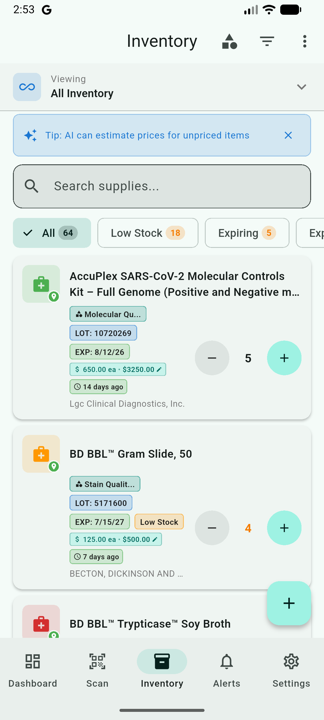
Viewing Inventory
Access your inventory from the bottom navigation bar:
- All Items: View complete inventory list
- By Location: Filter by storage location
- By Category: Group by supply type
- Expiring: Show items expiring soon
Adding Items
There are multiple ways to add items to inventory:
Via Barcode Scan
- Scan the product barcode
- Review the extracted information
- Select location and enter quantity
- Tap "Add to Inventory"
Manual Entry
- From Inventory screen, tap the + button
- Enter product name and details
- Add lot number and expiration date
- Select location and quantity
- Tap "Save"
Editing Items
- Tap on any item in the inventory list
- View the item detail screen
- Tap the Edit button (pencil icon)
- Modify the desired fields
- Tap "Save Changes"
Recording Usage
Track when supplies are used. The Use / Remove dialog captures both the quantity change and a reason, so reports can attribute every adjustment to a meaningful category.
- From the inventory list, tap an item to open its detail screen.
- Tap Use / Remove.
- Choose how much to remove. Quick chips for 1, 5, 10, and Use All are at the top, with a numeric field for arbitrary amounts.
- Select a reason:
- Dispense — item given to patient or department
- Adjust — correction to a previous count or data-entry error
- Waste — Expired — item past expiration date
- Waste — Damaged — package compromised or product unusable
- Waste — Contaminated — sterility broken
- Transfer Out — moved to another location or facility
- Add optional notes (visible in the audit log).
- Tap Confirm.
Restocking
- Open the item detail screen
- Tap "Restock"
- Enter the quantity being added
- If it's a new lot, enter lot number and expiration
- Tap "Add Stock"
Managing Locations
Organize inventory by physical locations:
Creating Locations
- Open the navigation menu
- Select "Locations"
- Tap the + button
- Enter location name (e.g., "Supply Room 101")
- Add optional description
- Tap "Create"
Moving Items Between Locations
- Open the item detail screen
- Tap "Transfer"
- Select the destination location
- Enter quantity to transfer
- Tap "Confirm Transfer"
Inventory Counts
Perform physical inventory counts to verify accuracy:
Starting a Count
- Go to Menu > Inventory Count
- Select a location to count
- Tap "Start New Count"
Performing the Count
- Scan each item or enter counts manually
- The app compares scanned vs. expected quantities
- Variances are highlighted in red
- Add notes for any discrepancies
Completing the Count
- Review the count summary
- Verify all items have been counted
- Tap "Complete Count"
- Choose whether to adjust inventory to match count
Searching and Filtering
Find items quickly:
- Search: Tap the search icon and enter product name, GTIN, or lot number
- Filter by Status: Show only OK, Expiring Soon, or Expired items
- Filter by Location: View items in a specific location
- Sort: Order by name, expiration date, quantity, or date added
Equivalence Groups
An equivalence group is a Supply Class that contains functionally interchangeable products — for example, three different brands of nitrile gloves in size M. When a class is flagged as an equivalence group, the app treats every product inside it as a single bucket for stock alerts and reorder recommendations.
Why this matters: if Brand A runs low but Brand B has plenty, the app will not fire a misleading low-stock alert — it knows the team can pull from either. Inventory cards display an "Equivalents" badge so staff at a glance know they can use any product in the group.
To enable: open Supply Classes, tap a class, and toggle Functional equivalents on. See the AI Features page for the full feature description.
Archived Items
When an item reaches zero quantity (fully dispensed, wasted, or transferred out), it is automatically archived rather than deleted. Archived items keep their full history and remain searchable.
- From the inventory screen, tap the overflow menu and choose Archived Items.
- Browse the list of archived supplies, sorted by most recently archived first.
- Use the search bar to filter by product name, GTIN, lot number, or archived reason.
- Tap an archived item to see its complete usage history and reason for removal.
- Tap Restore to return an item to active inventory if it was archived in error.
Cloud Sync
Keep your inventory synchronized across all your devices:
- Sign in with Google or Apple to enable cloud sync.
- Automatic background sync — changes propagate within seconds when connected.
- Offline mode — keep working offline; changes sync when you reconnect.
- Conflict resolution — the app handles concurrent edits with a last-write-wins strategy guarded by version vectors, so concurrent edits never silently lose data.
- Encrypted at rest — the local database uses SQLCipher (AES-256), and the cloud copy is encrypted in transit and at rest.
Location Fingerprinting
The app can remember where supplies are stored using a combination of:
- GPS coordinates for general location
- Wi-Fi signal patterns for indoor positioning (no internet connection required — the app reads visible network names and signal strengths)
- Magnetic field data for precise placement on Android
Each scan at a known location passively trains the fingerprint, so the app gets better at identifying where you are over time. When you scan in three or more nearby spots that don't yet match a known location, the app suggests creating one automatically.
Deleting Items
Most of the time you should archive items rather than delete them — archiving preserves the audit trail. If you do need to permanently delete an item:
- Open the item detail screen.
- Tap the overflow menu (three dots).
- Select Delete.
- Confirm deletion.