AI Features
Healthcare Supply Manager includes a suite of optional AI features that speed up data entry, classify new products, and surface inventory insights. All AI features use a Bring Your Own Key (BYOK) model — you provide credentials for an AI provider, and the app talks to it directly. No images, lot numbers, or inventory data are routed through our servers.
Setting Up an AI Provider
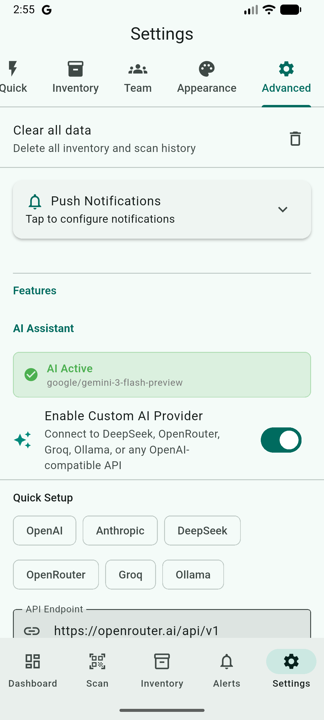
- Open Settings > AI.
- Choose a provider. The app supports any OpenAI-compatible endpoint, including:
- OpenAI (GPT-4o, GPT-4o-mini)
- Anthropic (Claude 3.5 Sonnet, Claude 3.5 Haiku) via OpenAI-compatible proxy
- Google AI Studio (Gemini 1.5 Pro, Gemini 1.5 Flash)
- Local / self-hosted models (LM Studio, Ollama, vLLM)
- Paste your API key. The app validates it before saving.
- Pick a vision model (used by the Label Reader) and a text model (used by classification and the Action Advisor). The app remembers your choice across devices via secure cloud sync.
AI Label Reader
The Label Reader extracts lot numbers, expiration dates, manufacturer, and product name from a photo of a medical-supply label. It is the single most-used AI feature and is integrated directly into the scanner.
How it appears
When you scan a barcode that's missing required data (lot number or expiration), the bottom sheet that opens contains an AI Label Reader card at the top. The card shows:
- A small thumbnail of the photo the AI will analyze. This is captured the instant the bottom sheet opens, while the camera is still aimed at the product. Tap the thumbnail to view it full-screen.
- A Read Label with AI button. If you have an AI provider configured, this runs automatically; otherwise tap to invoke it manually.
- A Retake photo button if the first capture wasn't clear — aim the camera at the label and tap to replace the captured image.
What gets extracted
- Lot number — populated into the manual entry form for review
- Expiration date — normalized to YYYY-MM-DD
- Product name — for unknown products, used to suggest a catalog entry
- Manufacturer — used for catalog suggestions
- Serial number and reference number when present
High-confidence results (≥ 70%) with both lot and expiration are auto-applied. Lower-confidence results are shown in a review card so you can accept, edit, or dismiss them.
AI Classification for New Products
When you register a brand-new product (one that isn't in the FDA UDI database or your custom catalog), the app sends the GTIN, suggested name, and manufacturer to your AI provider and asks it to suggest:
- A standardized product name consistent with your existing catalog entries.
- A category (e.g. PPE, sharps, IV consumables) chosen from your existing categories.
- A supply class (a more specific grouping like "Nitrile Gloves — Medium" or "10 mL Syringes").
The suggestions appear in a card on the registration screen with one-tap accept buttons. You can accept all of them, accept just the ones you like, or dismiss the card and enter values manually.
Equivalence Groups
An equivalence group is a Supply Class flagged as containing functionally interchangeable products — for example, "Nitrile Gloves Size M" might include three different brands you happen to stock. When a class is marked as an equivalence group:
- Stock alerts aggregate at the class level: if Brand A runs low but Brand B has plenty, no false low-stock alert fires.
- Reorder recommendations are calculated against the combined total instead of per-brand.
- ML forecasting uses the class total for more accurate consumption predictions.
- Inventory cards display an "Equivalents" badge so staff know they can use any brand in the group.
Marking a class as an equivalence group
- Open the Supply Classes screen.
- Tap the class you want to flag.
- Toggle Functional equivalents on.
- Tap Save.
The flag syncs to the cloud, so every device on your account immediately starts treating the class as a single bucket for alerts and recommendations.
AI Action Advisor
The dashboard surfaces an AI Action Advisor card when an AI provider is configured. The advisor periodically reviews your inventory and emits short, actionable suggestions, such as:
- "Reorder 4× Sterile Gauze 4×4 — current stock will last 9 days at recent dispense rate."
- "Move expiring lot LOT-2024A from Supply Room A to ER Cart 3 to consume before expiration."
- "3 items in Crash Cart 1 have not been scanned in 60 days — consider a count."
Each suggestion includes a confidence score and a one-tap action that opens the relevant screen pre-filled.
Cost Control
AI features are off by default and never run unless you've configured a provider. To keep usage predictable:
- The Label Reader caches results — rescanning the same barcode within a short window doesn't re-trigger the AI.
- Classification suggestions are only requested for genuinely new products, never on every scan.
- The Action Advisor refreshes only when the dashboard is opened, not in the background.
- You can disable any individual AI feature in Settings > AI while leaving the others enabled.
Disabling AI
If you want to turn off AI entirely, open Settings > AI and tap Remove provider. The app deletes the stored API key from your device's secure storage and reverts to the manual workflows for label entry and product registration. No AI features will run until you configure a provider again.